ConcernMorph: Metrics-based Detection of Crosscutting Patterns
Eduardo Figueiredo, Jon Whittle, and Alessandro Garcia
Abstract
Crosscutting concerns can hinder maintainability of a design because they do not adhere to a system’s underlying modular structure. Developers, therefore, may wish to refactor designs to improve modularisation or to implement crosscutting concerns as aspects. However, few tools currently exist that assist developers in detecting crosscutting concerns in their code. Furthermore, we are not aware of any tools that classify crosscutting concerns once they are found. Classification is important because, as recent studies have shown, crosscutting concerns are not always harmful. This paper describes a tool, ConcernMorph, for identifying crosscutting concerns and classifying them into one of a number of predefined crosscutting patterns.
ConcernMorph - Detecting Crosscutting Patterns - Credits
Installation
ConcernMorph is implemented as a plugin for Eclipse 3.3.2 using Java 1.5. It also extends ConcernMapper 2.0.3. The tool has only been used in this specific environment. Hence, there is no guarantee that it would work with different versions of Eclipse, Java, or ConcernMapper.
To install ConcernMorph, you should download the following two Zip files and copy them into the Ecplipse's plugin folder.
Steps to install ConcernMorph:
- Download and unzip both files;
- Copy both the Concern Mapper folder and the ConcernMorph JAR file inside the ‘plugins’ folder of Eclipse.
Getting Started
After you have successfully installed ConcernMorph, you are ready to run it. Follow the following steps to get started with the tool.
1) Open a Java project into Eclipse
To make your life easier, we made available below a 'ready to be used' project. We refer to this Java project as MobileMedia (find out more about MobileMedia here).
2) Show the tool views: Concern Mapper, Crosscutting Patterns, and Concern Metrics
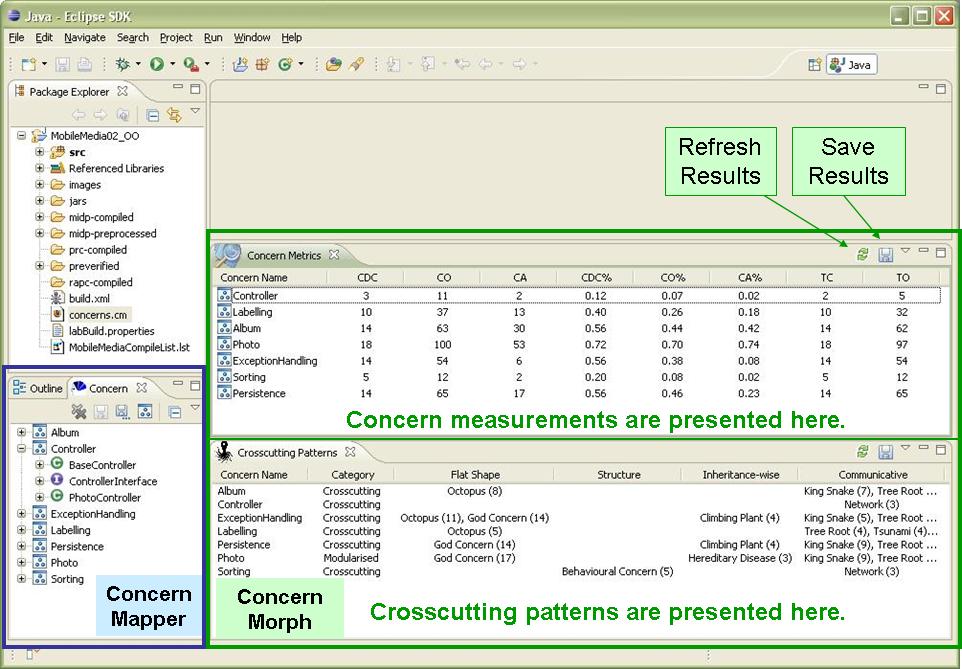
Your next step is to show the specific views of ConcernMorph (Concern Mapper, Crosscutting Patterns, and Concern Metrics). You can do this by following the sequence "Window -> Show View -> Other..." in your Eclipse. Then, look for the ConcernMapper folder (see the figure below).

3) Load the concern projection into the Concern Mapper view
The projection of concerns onto the system's syntactic elements (e.g., classes, attributes, and methods) is saved in a .cm file.
For our running project (MobileMedia), there is a file called "concerns.cm" in the project root folder. You have to drag-and-drop this file into the Concern Mapper view in order to load it.
4) Refresh views
To see the concern measurement for a project, you have to refresh the Concern Metrics view (see details in the figure below).
- Nice Tip: By double-clicking a concern metric in the Concern Metrics view, you see the metric details per component.
Similarly, you also have to refresh the Crosscutting Patterns view to see the classification of concerns in your project (see details in the figure below).
- Nice Tip: By double-clicking a concern classification in the Crosscutting Patterns view, you see details per component.
5) Define thresold values
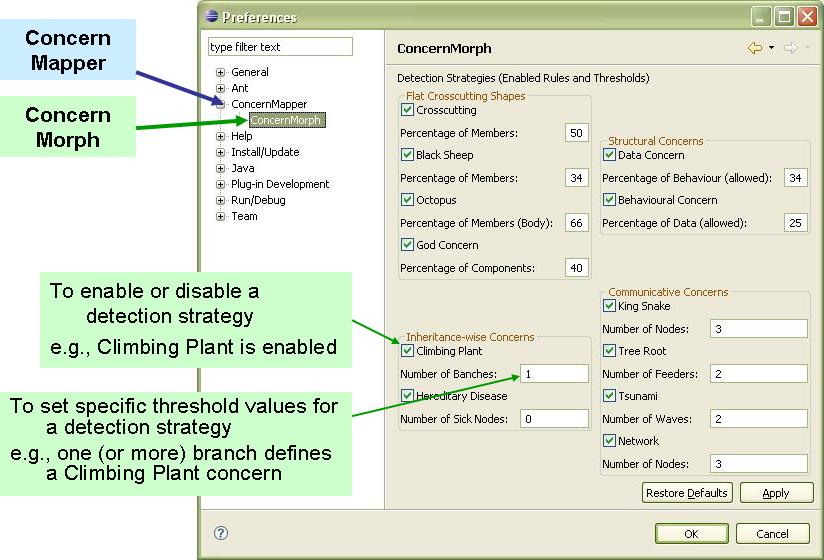
To define different threshold values for metrics and detection strategies, you should go to ‘Window -> Preferences...’. Then, look for the Concern Mapper option (see details in the figure below).